
Module 11: Managing Active Directory Replication in Windows Server
Active Directory (AD) replication is the process that synchronizes directory data across all domain controllers in a domain or forest. Effective replication is crucial to ensure data integrity, authentication reliability, and fault tolerance across the network.
How Active Directory Replication Works
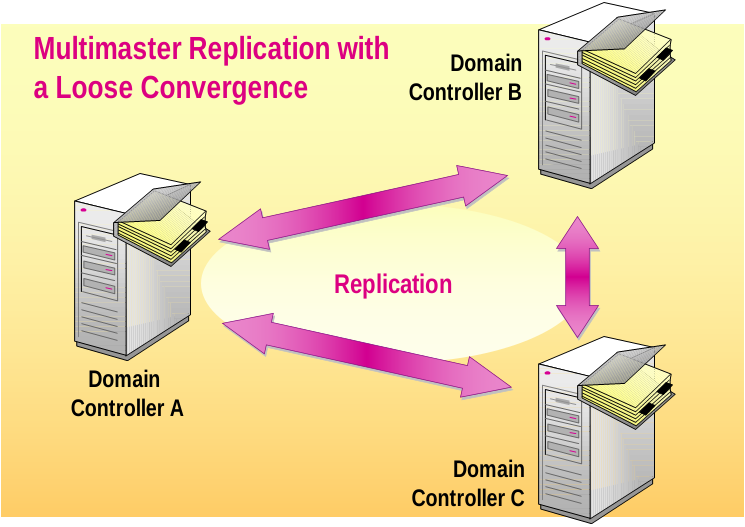
Multi-Master Replication: Any domain controller (DC) can receive updates and replicate them to others.
Inbound and Outbound Replication: DCs both send and receive changes from their partners.
Replication Topology: Controlled by the Knowledge Consistency Checker (KCC), which builds and maintains the replication links.
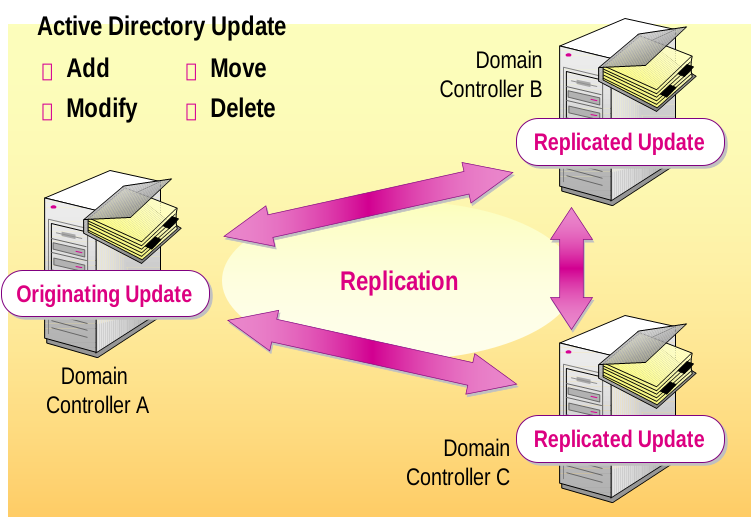
Changes to user accounts, groups, or GPOs on one DC are automatically replicated to others.
Replication Topology and Sites
AD is divided into Sites to optimize replication across geographic locations.
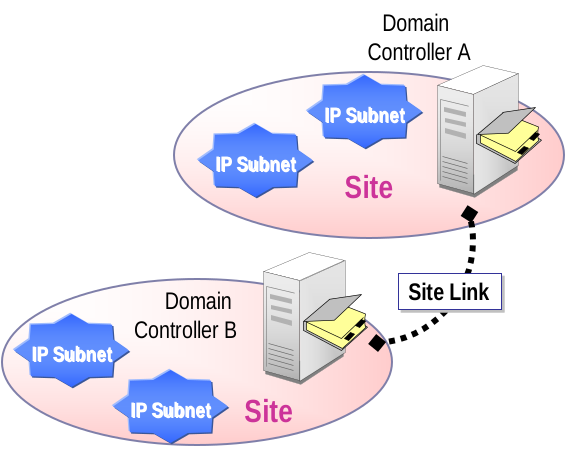
Site Links define how DCs in different sites communicate.
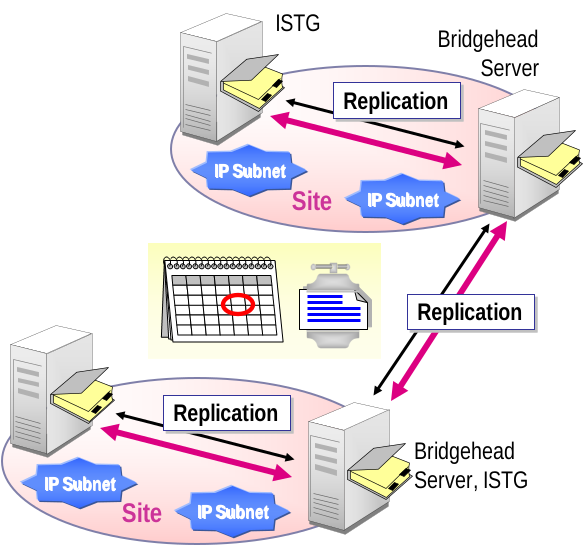
Bridgehead Servers manage inter-site replication.
Inter-site replication is scheduled and compressed to reduce WAN traffic, while intra-site replication is frequent and uncompressed.
Introduction to Active Directory Replication
Active Directory (AD) replication is the process by which data changes in one domain controller (DC) are automatically synchronized across all other domain controllers in an Active Directory environment. This ensures consistency and reliability across the directory service.
Replication is a core feature of Active Directory, enabling it to function as a distributed and fault-tolerant system.
Active Directory Replication Components and Processes
Active Directory (AD) replication ensures that all domain controllers (DCs) maintain an up-to-date and consistent view of the directory data. It is a multi-master process, meaning changes can originate from any DC and will be replicated across the environment.
Let’s break down the key components and how the process works.
Core Components of AD Replication
Domain Controllers (DCs)
Hold a writable or read-only copy of directory data
Communicate with each other to share updates
Replication Partners
Each DC replicates data with one or more partners
Partners can be intra-site (same site) or inter-site (different sites)
Knowledge Consistency Checker (KCC)
Automatically creates and maintains replication topology
Ensures optimal connection paths between DCs
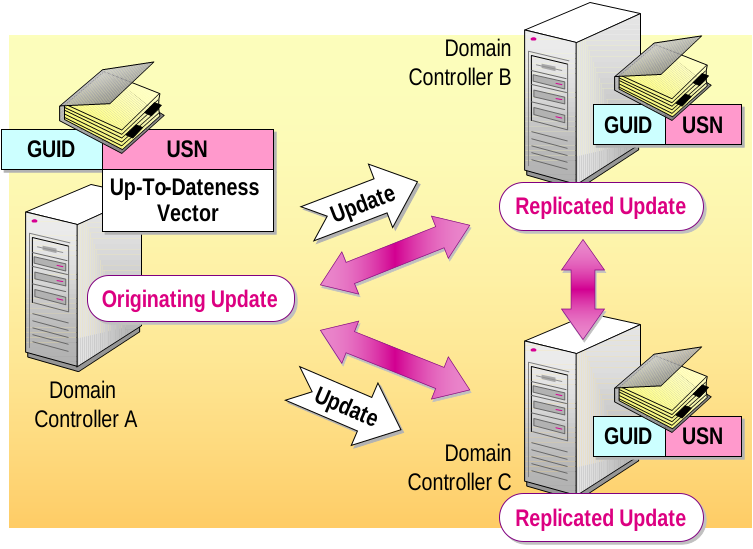
Update Sequence Numbers (USNs)
Each change is assigned a USN to track replication
Prevents duplicate updates and ensures consistency
Invocation ID
A unique identifier for each DC’s replication instance
Used to distinguish between DCs and their changes
High-Watermark Vector Table
Keeps track of the highest USN received from each DC
Used to determine what updates need replication
Replication Metadata
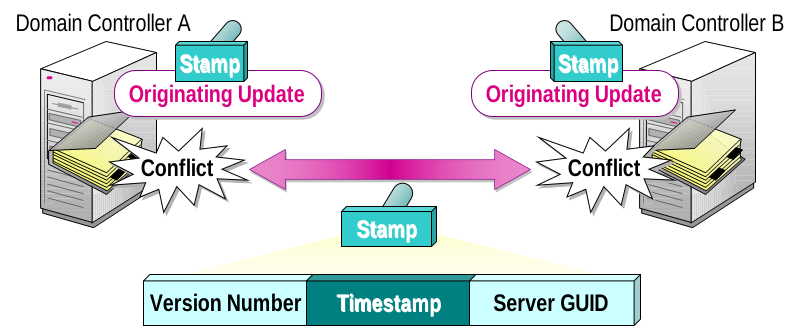
Tracks attributes like version number, originating DC, and timestamp
Enables conflict resolution and change tracking
Active Directory Replication Processes
1. Change Notification (Intra-Site Replication)
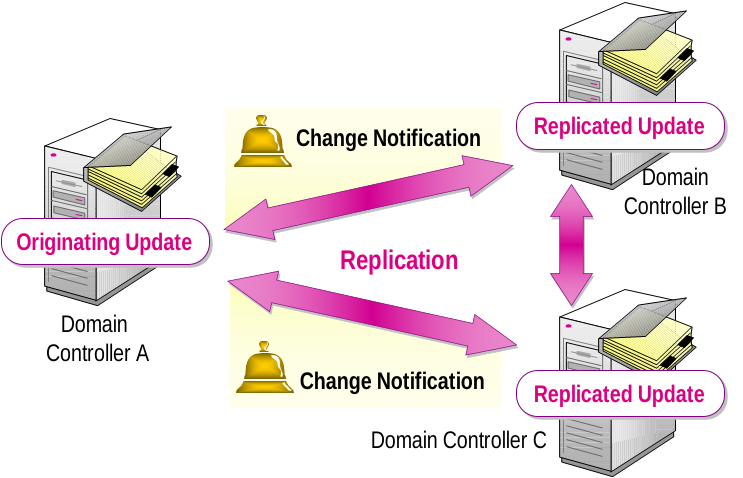
When a change occurs on a DC, it notifies its direct replication partners
Those partners pull the change after a short delay (15 sec + random delay)
This process repeats until all partners are synchronized
This keeps intra-site replication fast and efficient
2. Scheduled Pull Replication (Inter-Site)
Changes are notified and replicated on a schedule (default: 180 minutes)
Uses bridgehead servers to manage traffic between sites
Data is compressed to reduce WAN usage
Best for environments with limited bandwidth or geographic dispersion
3. Conflict Resolution
If the same object is modified on two DCs at the same time:
AD uses version numbers and timestamps
The change with the highest version or latest timestamp wins
Ensures data integrity across all domain controllers
4. Replication Topology Generation
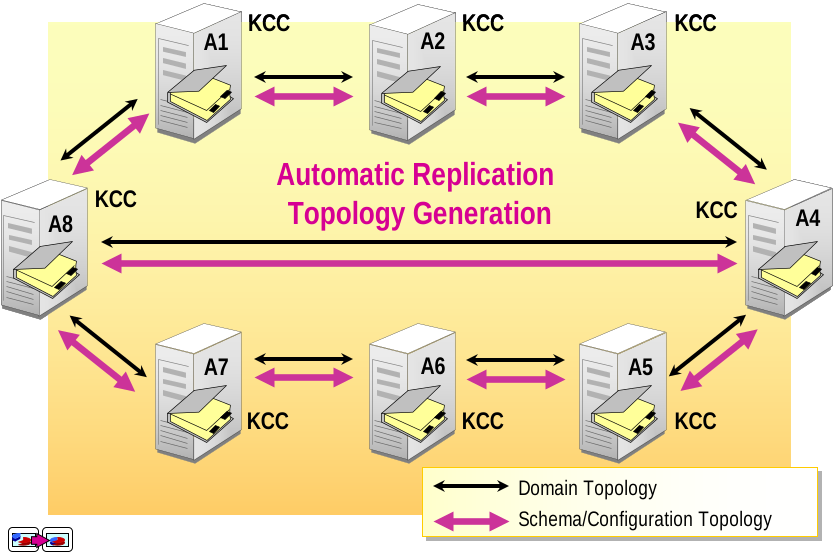
KCC builds a connection object graph
For intra-site: Full mesh by default
For inter-site: Based on site links, costs, and schedules
- How Replication Works
- Replication Latency
- Default Replication Latency (Change Notification) = 5 minutes
- When No Changes, Scheduled Replication = One Hour
- Urgent Replication = Immediate Change Notification
- Resolving Replication Conflicts
- Attribute Value
- Adding/Moving Under a Deleted Container Object or the Deletion of a Container Object
- Sibling Name
- Optimizing Replication
Active Directory Replication Topology: How It Works and Best Practices
In Active Directory (AD), replication topology defines how domain controllers (DCs) communicate and synchronize changes across the environment. The goal is to ensure that updates made on one DC are quickly and efficiently replicated to all others.
The Knowledge Consistency Checker (KCC) is responsible for automatically generating and maintaining this topology.
Types of Replication Topology
1. Intra-Site Replication Topology
Occurs within the same AD site
Designed for fast, frequent, and uncompressed replication
Full-mesh connections are typically generated, meaning each DC connects to others directly
Change notifications trigger replication every 15 seconds (plus a random delay)
Best for high-speed LANs
2. Inter-Site Replication Topology
Occurs between different AD sites
Designed for scheduled, compressed replication
Uses bridgehead servers to send/receive changes across site boundaries
Topology is based on site links, costs, and schedules
Ideal for branch offices or geographically dispersed networks
Key Components of Replication Topology
| Component | Role in Topology Design |
|---|---|
| KCC (Knowledge Consistency Checker) | Automatically creates and adjusts replication links |
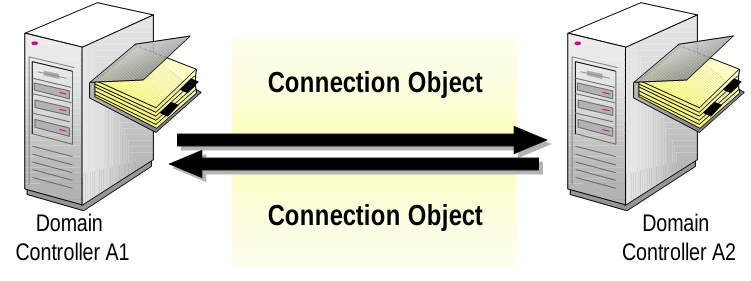
| Connection Objects | Define which DCs replicate with which partners |
| Site Links | Logical paths for inter-site replication |
| Bridgehead Servers | Act as primary contact points between sites |
| Site Link Cost & Schedule | Determine replication priority and timing |
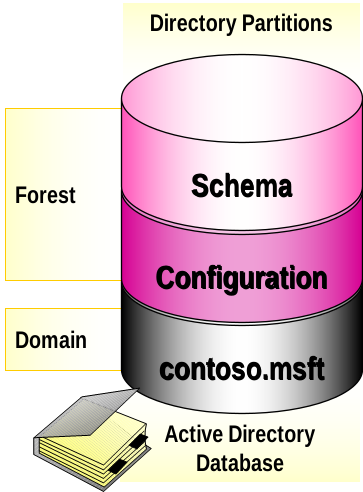
- Directory Partitions
Contains definitions and rules for creating and manipulating all objects and attributes
Contains information about Active Directory structure
Holds information about all domain-specific objects created in Active Directory
- What Is Replication Topology?
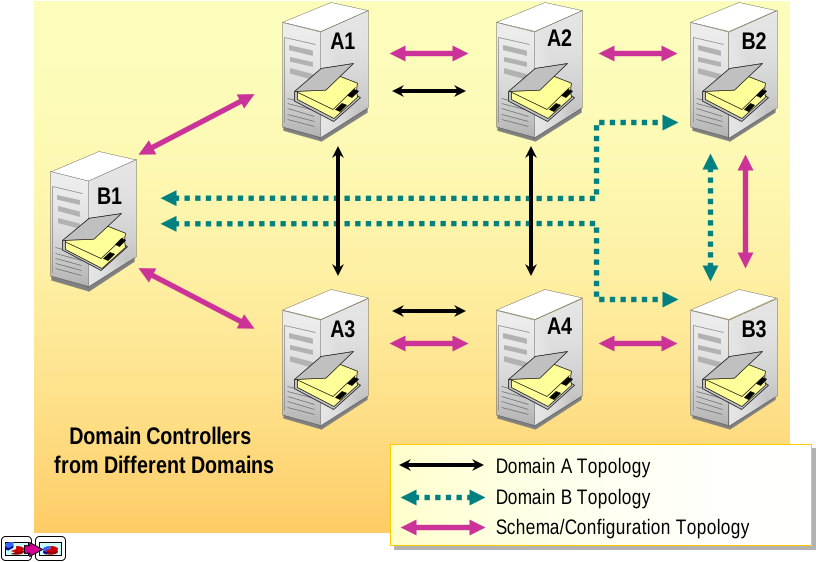
- Global Catalog and Replication of Partitions
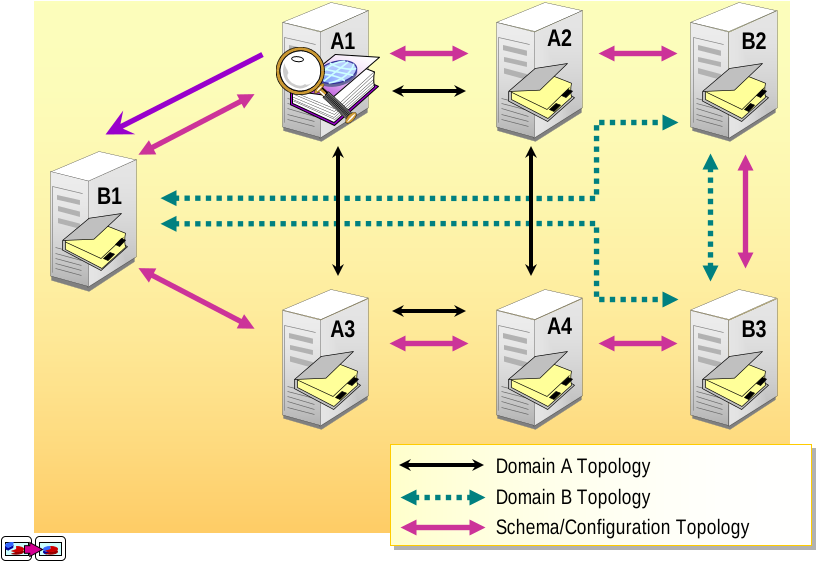
- Automatic Replication Topology Generation
- Using Connection Objects
- Connection Objects Are Created: Automatically or Manually
- Connection Objects Are Created on Each Domain Controller
- Use Active Directory Sites and Services to Manually Create, Delete, and Adjust Connection Objects
- Use the Replicate Now Option to Manually Initiate Replication
Using Sites to Optimize Active Directory Replication in Windows Server
Active Directory (AD) Sites are a powerful tool that align your directory infrastructure with your physical network topology. Sites allow administrators to control replication traffic, improve logon performance, and optimize resource usage in environments with multiple locations.
What Is an Active Directory Site?
An AD Site is a logical grouping of well-connected IP subnets that represent a physical location, such as:
Head office
Remote branches
Data centers
Sites are used to:
Optimize replication
Direct client logon to nearby domain controllers
Control Group Policy application scope
How Sites Optimize Replication
| Feature | Benefit |
|---|---|
| Intra-site Replication | Fast, frequent, and uncompressed over high-speed LAN |
| Inter-site Replication | Scheduled and compressed to save WAN bandwidth |
| Site Link Schedules | Customize replication times (e.g., off-peak hours) |
| Bridgehead Servers | Control which DCs handle WAN replication |
Designing Site Topology
Identify Physical Locations
Create a site for each location connected by WAN
Define IP Subnets
Assign subnets to the correct site (crucial for logon routing)
Create Site Links
Connect sites using customizable replication schedules and costs
Assign Domain Controllers to Sites
Place at least one DC per site, ideally with Global Catalog (GC)
Managing Sites in Active Directory
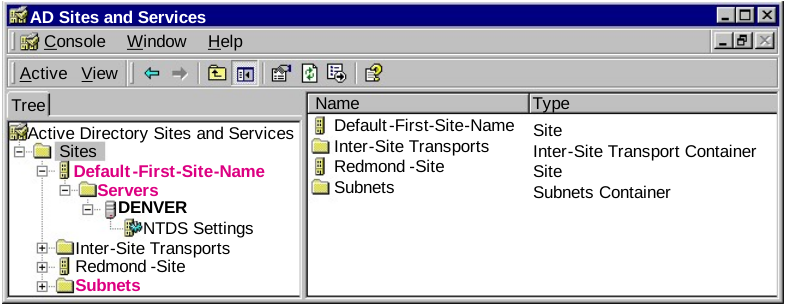
Use the Active Directory Sites and Services console to:
Create and manage sites
Define subnets and site links
View and edit replication connections
Assign bridgehead servers
- What Are Sites?
- The First Site Is Set Up Automatically, and Is Called Default-First-Site-Name
- Sites Can Consist of Zero, One, or More Subnets
- Sites Are Used to Control Replication Traffic and Logon Traffic
- Sites Contain Server Objects and Are Associated with IP Subnet Objects
- Replication Between Sites
- Occurs on a Manually Defined Schedule Is Designed to Optimize Bandwidth One or More Replicas in Each Site Act As Bridgeheads
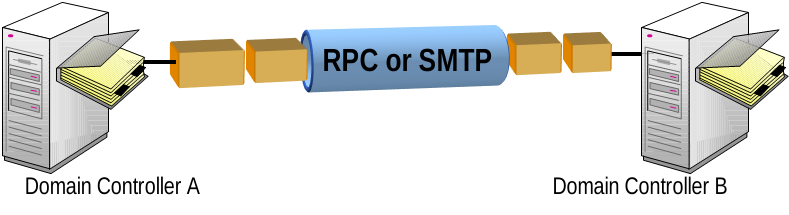
- Replication Protocols
- RPC for Replication Within and Between Sites
- SMTP for Replication Between Sites
Implementing Sites to Manage Active Directory Replication Effectively
In large or geographically distributed organizations, managing Active Directory (AD) replication efficiently is critical. By implementing sites, you can align AD’s replication model with your physical network topology, ensuring fast, reliable, and bandwidth-friendly data synchronization.
What Are Active Directory Sites?
An AD site is a logical container that represents a physical location (e.g., office, branch, data center) connected via high-speed or low-speed network links.
Each site contains:
One or more domain controllers (DCs)
Defined IP subnets
Replication settings (site links and schedules)
Why Use Sites to Manage Replication?
| Advantage | Benefit |
|---|---|
| Efficient Replication | Intra-site replication is frequent and uncompressed |
| Bandwidth Control | Inter-site replication is scheduled and compressed |
| Faster Authentication | Clients contact the nearest domain controller based on their subnet |
| Group Policy Optimization | GPOs can be linked and filtered by site for targeted control |
- Creating Sites and Subnets
- Transport Member sites Cost Schedule Replication Interval
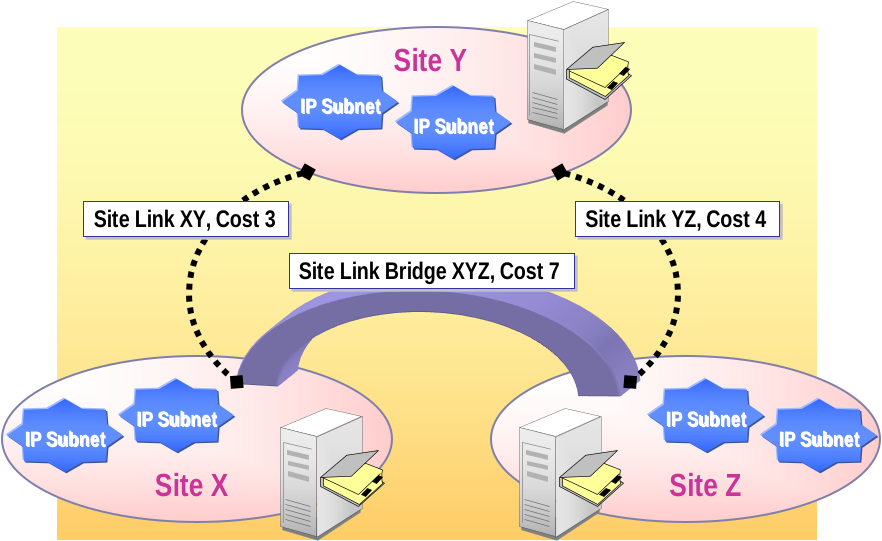
- Creating a Site Link Bridge
Monitoring Active Directory Replication Traffic: Tools, Commands & Best Practices
In Active Directory (AD), replication traffic is the network communication between domain controllers (DCs) to synchronize directory data. Monitoring this traffic is crucial for maintaining data consistency, authentication reliability, and network efficiency, especially in multi-site environments.
Why Monitor Replication Traffic?
| Benefit | Purpose |
|---|---|
| 🛡️ Detect Replication Failures | Identify issues like latency, DC unavailability, or corruption |
| 📉 Optimize Performance | Prevent excessive WAN usage or replication storms |
| 📊 Audit Changes | Understand what changes are replicating and from where |
| ⚠️ Avoid Lingering Objects | Catch outdated DCs before objects expire and cause conflicts |
Lorem ipsum dolor sit amet, consectetur adipiscing elit. Ut elit tellus, luctus nec ullamcorper mattis, pulvinar dapibus leo.
Tools to Monitor Replication Traffic
1. Repadmin
A powerful command-line tool for tracking replication status.
| Command | Description |
|---|---|
repadmin /replsummary | Summary of replication health across all DCs |
repadmin /showrepl * /csv | Shows all inbound replication partners |
repadmin /showconn | Displays connection objects between DCs |
repadmin /latency * | Shows how long replication takes per partner |
repadmin /queue | Displays pending replication operations |
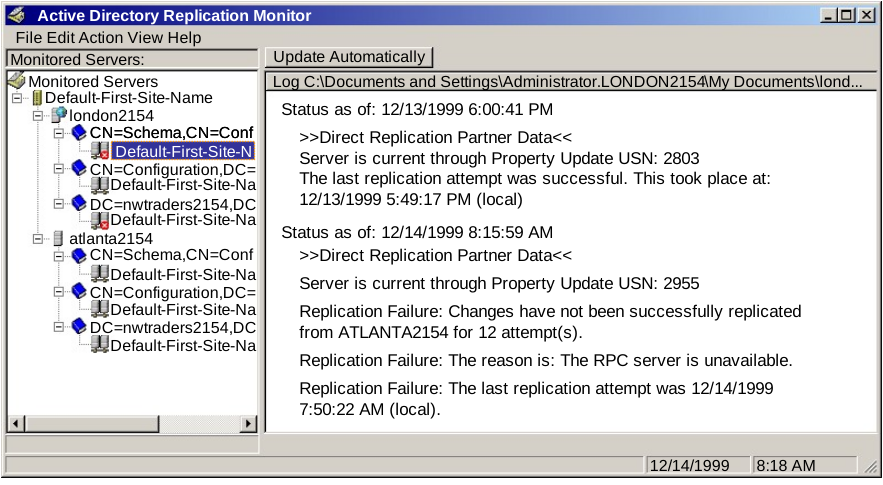
- What Is Replication Monitor?
- Display the Replicating Partner
- Display Each USN Value, the Number of Failed Attempts, Reason, and Flags
- Poll the Server at an Administrator-Defined Interval
- Monitor the Count of Failed Replication Attempts
- Display Each USN Value, the Number of Failed Attempts, Reason, and Flags
- Using Replication Monitor to Monitor Replication Traffic
- Show Which Objects Have Not Yet Replicated
- Synchronize Between Just Two Domain Controllers
- Trigger the KCC into Recalculating the Replication Topology
- Using Replication Monitor to Monitor Replication Traffic
- Using Repadmin to Monitor Replication Traffic
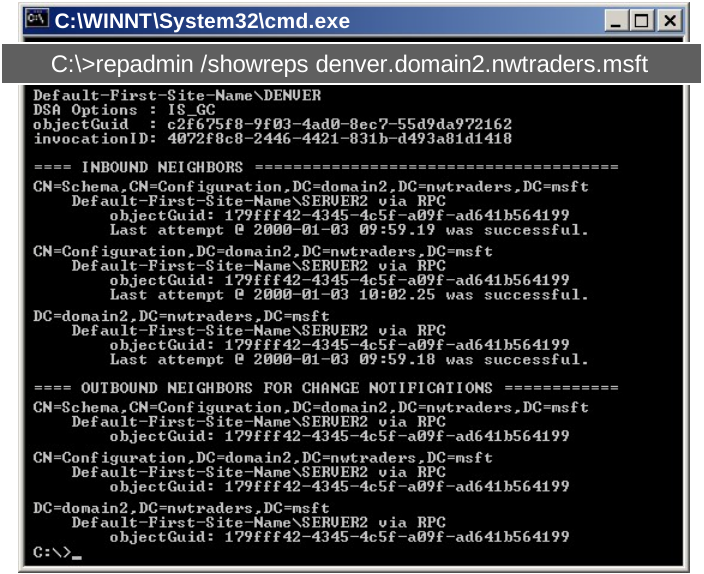
In a Windows Server environment, replication between domain controllers (DCs) is essential for data consistency and reliable authentication. But in large or geographically distributed networks, you may need to adjust replication settings to optimize performance, reduce WAN traffic, and ensure timely updates.
Why Adjust Replication Settings?
| Reason | Benefit |
|---|---|
| 🕒 Control Replication Timing | Prevents congestion during peak business hours |
| 🌐 Prioritize Critical Sites | Ensure key locations receive updates more frequently |
| 💾 Reduce Bandwidth Usage | Schedule replication during off-peak hours |
| 🔧 Customize Topology | Improve efficiency by redefining site links and costs |
Key Areas to Adjust
1. Replication Schedule
Controls when replication happens between sites
Default: Every 180 minutes (3 hours)
You can customize:
Days of the week
Hourly windows (e.g., 8 PM – 6 AM)
Where to set this:
Active Directory Sites and Services → Site Links → Properties → Replication Schedule
2. Site Link Cost
Determines priority of replication paths
Lower cost = higher preference
Use costs to:
Prefer high-speed links
Avoid backup or metered WAN links unless necessary
Adjust in:
Site Link Properties → Cost
💡 Example:
Fiber link = cost 10
DSL backup link = cost 200
3. Bridgehead Server Selection
A bridgehead server is the domain controller that handles inter-site replication
By default, selected automatically by the KCC
You can manually specify for better control
📍 Set in:
Sites and Services → Servers → NTDS Settings → Right-click → Properties → Select “Bridgehead”
4. Connection Objects
Represent replication relationships between domain controllers
You can manually create or adjust them to:
Force replication between specific DCs
Bypass automatic KCC decisions
📍 Found in:
Sites and Services → NTDS Settings → Connection objects
- What Is Replication Monitor?
- Reduce the number of hops between domain controllers
- Bypass the failed server or servers
Active Directory (AD) replication issues can lead to directory inconsistency, authentication delays, and network performance problems. Understanding and resolving replication failures ensures a stable and synchronized AD environment.
Here’s how to troubleshoot common replication problems:
- Replication Does Not Finish
Symptoms:
repadmin /showreplshows errors or timeoutsDCs are out of sync
Event Viewer logs Event IDs
1311,1988, or2042
Causes:
Stale connection objects
DNS misconfiguration
Firewall blocking replication ports
Fixes:
Run:
repadmin /replsummary
dcdiag /v
Check DNS zones and ensure proper name resolution
Verify ports (TCP 135, 389, 636, 3268) are open
Delete and recreate connection objects if corrupt
- Replication Is Slow
Symptoms:
Replication delays across sites
High latency reported by
repadmin /latency
Causes:
Slow WAN links
Overloaded domain controllers
Poor replication scheduling
Fixes:
Adjust site link schedule for off-peak hours
Increase replication frequency if needed
Check server resources (CPU, RAM, Disk I/O)
Optimize topology using
repadmin /kcc
- Replication Increases Network Traffic
Symptoms:
High bandwidth usage during replication
Network congestion reports from monitoring tools
Causes:
Too many changes being replicated simultaneously
Intra-site replication misconfigured over WAN
Lack of compression on inter-site links
Fixes:
Confirm site definitions and subnets are correct
Compress inter-site replication by default
Use
PerfMoncounters:NTDS\DRA Inbound Bytes Total/secNTDS\DRA Outbound Bytes Total/sec
- Replication Clients Are Receiving a Slow Response
Symptoms:
Users experience delays during logon or authentication
Group policies take longer to apply
Causes:
Clients contacting off-site domain controllers
Incomplete replication of user/group objects
Fixes:
Check client site detection:
nltest /dsgetsite
Ensure local DCs are present and online
Verify subnets are correctly mapped in Sites and Services
- KCC Was Unable to Complete the Topology
Symptoms:
Event ID
1311: KCC unable to build replication topologyNo connection objects between domain controllers
Inbound replication shows failure
Causes:
Missing site link
Improper site cost or schedule
Offline or removed domain controllers
Fixes:
Force KCC to recalculate:
repadmin /kcc
Use
Active Directory Sites and Servicesto verify:Site links exist and are scheduled
At least one bridgehead server is present
Run:
repadmin /showconn
Add comment